Upscayl image upscaler: install it and upscale one image
Short answer
Upscayl is a free, open-source AI image upscaler for Windows, macOS and Linux. It enlarges a picture 4x on your own graphics card, and the image is never uploaded. On Windows, copy the winget command in the box, press Win+R, paste and press Enter. Then open Upscayl, select one image and click Upscayl.
- Free and open source, with no watermark or account
- Runs on your own Vulkan graphics card, so pictures stay on your computer
- Seven built-in models, all native 4x
By Pixel Bench editorial team Checked against Upscayl 2.15.0, released December 25, 2024
- Independent guide · not affiliated with Upscayl
- Free and open source · AGPL-3.0, Windows, macOS, Linux
- Latest release 2.15.0 · December 25, 2024, official files
Install Upscayl 2.15.0
Windows
Paste into PowerShell or Windows Terminal:
winget install -e --id Upscayl.Upscayl --accept-source-agreements --accept-package-agreementsPress Win+R, paste with Ctrl+V, press Enter. A window opens, installs and closes; then open the app from Start. Approve the Windows administrator prompt if one appears.
Package: Upscayl.Upscayl in the Windows Package Manager catalogue (microsoft/winget-pkgs).
Or download the file directly from the official GitHub release:
Download Windows win.exe installerAlso on this release: Windows win.zip portable
Verify the download (SHA-256)
SHA-256 of upscayl-2.15.0-win.exe, from the winget manifest; Pixel Bench also hashed the GitHub file on 2026-09-27 and it matches. Your file's hash must match exactly.
5dd7f58abafae2907fede489324a074cb6959a93c5714f3d0609650ab942ff3c PowerShell: Get-FileHash .\upscayl-2.15.0-win.exe -Algorithm SHA256
Windows 10 or later, x64, and a Vulkan-compatible GPU. Many integrated GPUs fail; check the project compatibility list.
macOS
Paste into Terminal (needs Homebrew):
brew install --cask upscaylPackage: the upscayl cask in Homebrew, listed in the Upscayl README.
Or download the file directly from the official GitHub release:
Download macOS universal .dmgAlso on this release: macOS .zip
Verify the download (SHA-256)
SHA-256 of upscayl-2.15.0-mac.dmg, from the Homebrew cask, which checks it on every install. Your file's hash must match exactly.
0e53c9ee8c1800cb3e2ce0f574e4e1a35a51945e19ff2b93f33928bbd7fd4c5a Terminal: shasum -a 256 upscayl-2.15.0-mac.dmg
macOS 12 or later, Intel or Apple silicon (universal build).
Linux
Paste into a terminal (needs Flatpak):
flatpak install flathub org.upscayl.UpscaylPackage: org.upscayl.Upscayl on Flathub, linked from the Upscayl README.
Or download the file directly from the official GitHub release:
Download Linux AppImageAlso on this release: .deb, .rpm
x86-64 Linux with Vulkan drivers installed; the project lists Ubuntu 20.04 or later.
Every file comes from upscayl/upscayl v2.15.0 on GitHub, the project's own release, unmodified.
How do I install Upscayl and upscale my first image?
- Install Upscayl. Copy the winget command, press Win+R, paste with Ctrl+V and press Enter, then approve the administrator prompt. On macOS or Linux, run the Homebrew or Flathub command from the same box instead.
- Finish the welcome dialog. Open Upscayl from Start, choose your language and theme, decide on the Auto Update and Help Improve Upscayl switches, and click Get Started.
- Select one image. In Step 1 click Select Image and pick a small PNG, JPG or WEBP picture that is not blurred.
- Keep the defaults and click Upscayl. Leave the Upscayl Standard model and the 4x scale as they are, then click Upscayl in Step 4.
- Check the new file. Open the PNG saved next to the original, whose name ends in _upscayl_4x_upscayl-standard-4x, and compare both files at 100% zoom.
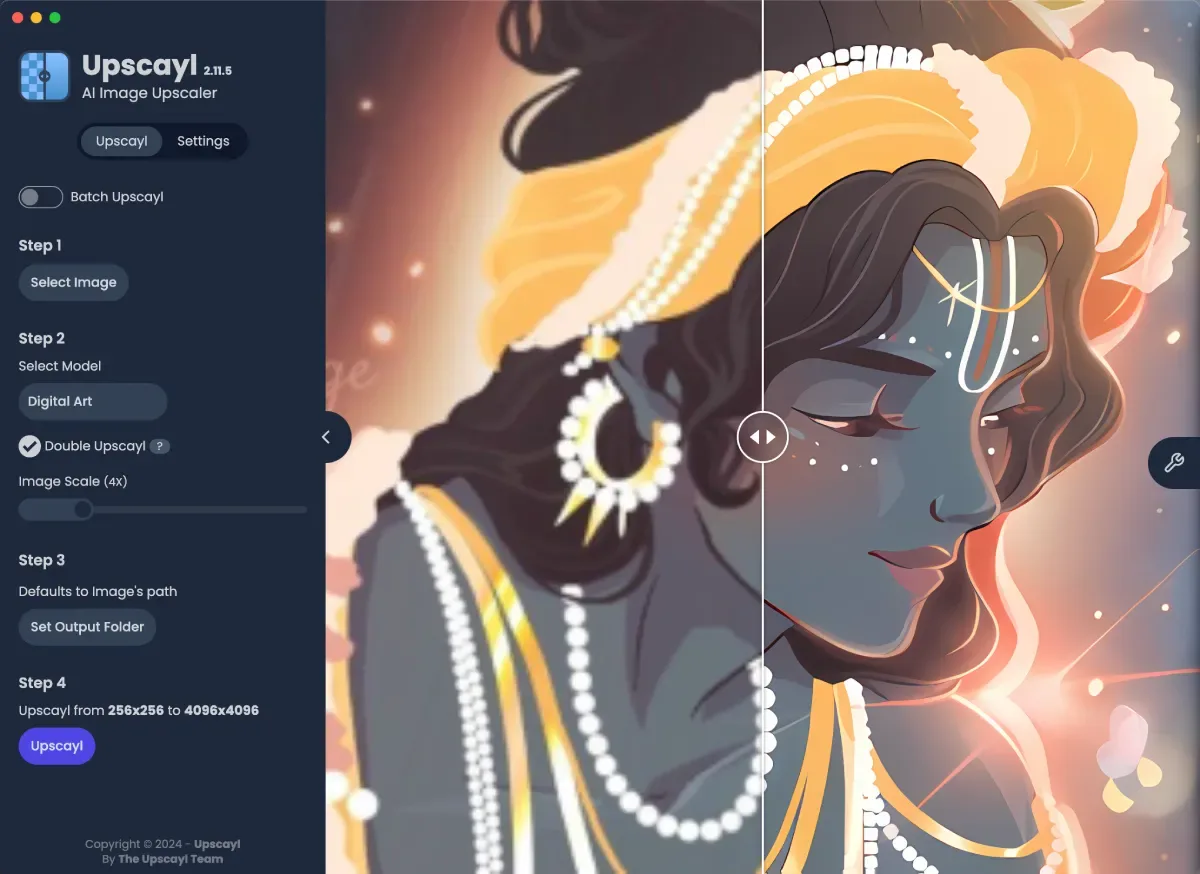
The whole first run takes a few minutes on a working GPU. When the upscale fails, the cause is almost always the graphics driver or an unsupported integrated GPU rather than the picture; the Vulkan GPU check walks through the log. The full walkthrough, with what each step shows on screen, is in upscale your first image.
What does Upscayl do with its default settings?
Upscayl's defaults are tuned for a single test picture. We read each value below from the Upscayl 2.15.0 source code (user settings and the image command), so you know where the file will land before you click.
| Setting | Default |
|---|---|
| Model | Upscayl Standard |
| Scale | 4×; the slider runs from 1× to 16× |
| Output folder | The selected image's folder (Step 3 reads Defaults to Image's path) |
| Output file | PNG named <name>_upscayl_4x_upscayl-standard-4x.png |
| Input formats | PNG, JPG, JPEG, JFIF and WEBP |
| Overwrite previous upscale | Off |
| Auto update check | On |
| Help Improve Upscayl (anonymous usage data) | On |
Which Upscayl model should I pick first?
Start with Upscayl Standard, the default, because it suits most pictures. Switch only after one result, and compare the same image through two models at 100% zoom before deciding. The model guide explains the scale slider, Double Upscayl and custom models.
| Model | Best for |
|---|---|
| Upscayl Standard | Suitable for most images (the default) |
| Upscayl Lite | Most images, faster, with minimal quality loss |
| High Fidelity | Realistic detail and smooth textures |
| Digital Art | Digital art and illustrations |
| Remacri (non-commercial) | Natural images, added sharpness and detail |
| Ultramix Balanced (non-commercial) | Natural images, balance of sharpness and detail |
| Ultrasharp (non-commercial) | Natural images, focus on sharpness |
Model list and descriptions from models-list.ts and en.json.
Where do I get the official Upscayl files?
Get Upscayl only from its GitHub releases, upscayl.org, winget, Homebrew or Flathub. The Windows installer for 2.15.0 is upscayl-2.15.0-win.exe (249 MB), and winget installs that same file after checking its SHA-256. The download page lists every file with its size and hash, and the Windows install guide covers SmartScreen and the portable ZIP.
Frequently asked questions
Is Upscayl free?
Yes. Upscayl is free and open source under the AGPL-3.0 licence, with no watermark and no sign-up. The Windows, macOS and Linux downloads on GitHub and upscayl.org are the full app. Three built-in models, Remacri, Ultramix and Ultrasharp, are labelled Non-Commercial in the app.
Does Upscayl upload my images?
No. Upscayl processes each picture on your own GPU and writes the result to a folder on your computer. It does send anonymous usage data, such as the GPU model and daily use, while Help Improve Upscayl is on, which is the default; you can switch it off in Settings.
Why does Upscayl not work on my computer?
Usually because the graphics card or its driver has no working Vulkan support. The README FAQ says most integrated GPUs and CPUs will not work. Try one small image, then read the log in Settings; the GPU check explains each error.
How much can Upscayl enlarge an image?
The built-in models all enlarge 4x, so 500 by 500 pixels becomes 2000 by 2000. The scale slider goes up to 16x, but the app says anything above 4x only resizes, except 16x with Double Upscayl, which runs the model twice.