Short answer
Open Upscayl, click Select Image and choose a PNG, JPG, JPEG, JFIF or WEBP. Keep the default model, Upscayl Standard, and the default 4x scale, then click Upscayl. The result is saved as a PNG in the same folder as your image, with _upscayl_4x_upscayl-standard-4x added to its name. Compare both at 100% zoom.
How do I upscale one image in Upscayl?
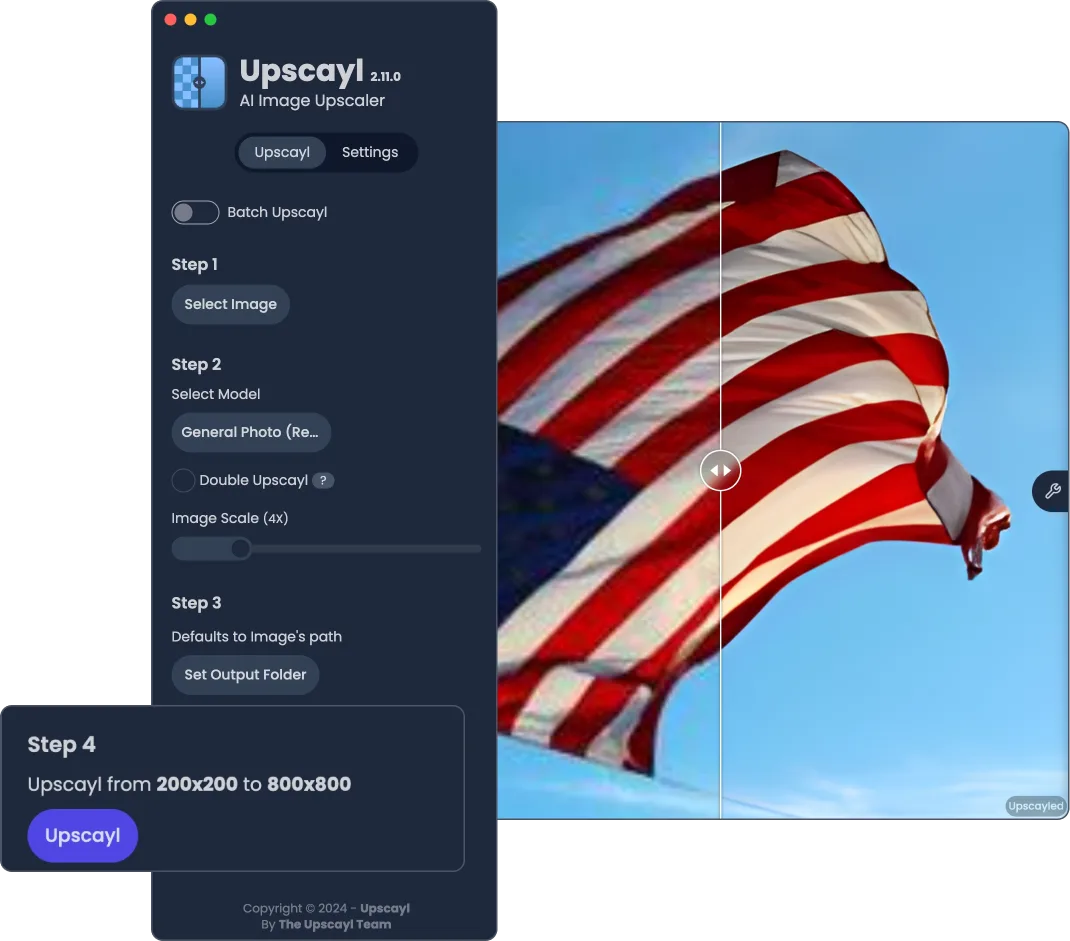
- Select the image. In Step 1 click Select Image and pick one small, reasonably sharp picture. You can also drag it onto the window or paste it with Ctrl+V.
- Keep the default model. Step 2 shows Upscayl Standard, the default model for most images. Leave it for the first run.
- Check the output folder. Step 3 reads Defaults to Image's path. Click Set Output Folder only if you want the result somewhere else.
- Start the upscale. Step 4 shows the input and output size, for example 500x500 to 2000x2000. Click Upscayl and wait for Upscayl Successful.
- Compare at 100% zoom. Drag the slider over the preview, then open both files in an image viewer at 100% and compare the same edge or texture.
Which image works best for a first upscale?
Choose something small with real detail, because an upscaler enlarges what is there and guesses the rest. The README FAQ says Upscayl improves low-resolution and pixelated images but cannot de-blur or fix focus. A 300 to 800 pixel photo, logo or game screenshot shows the effect clearly and finishes quickly. The app accepts PNG, JPG, JPEG, JFIF and WEBP (valid-formats.ts); other files are refused with an “Invalid Image” message.
Where does the upscaled file go?
The output goes next to the original unless you pick a folder in Step 3. When you select an image, Upscayl sets the output folder to that image’s folder (index.tsx), and the file name gets _upscayl_, the scale and the model added (image-upscayl.ts). To keep results elsewhere every time, choose a folder and switch on Save Output Folder in Settings. On Windows, a full output path of 255 characters or more is rejected, so keep deep folder names short.
How do I know the upscale actually helped?
Judge detail at 100% zoom, not the pixel count. A 4x result always has sixteen times as many pixels, but the added detail is the model’s estimate. Open the original and the result side by side, zoom both to the same area, and look at text edges, hair and fabric. Watch for halos around edges, a waxy look on skin and colour shifts; a washed-out result usually means the input was not sRGB, which the troubleshooting page covers.
What if the first upscale fails?
A failure on a small image points at the GPU, not the settings. Open Settings, read the log and follow the Vulkan GPU check. If the image worked but you dislike the look, try another built-in model on the same file; the model guide explains which suits photos and which suits drawings.
| Setting | Default | Where to change it |
|---|---|---|
| Model | Upscayl Standard (upscayl-standard-4x) | Step 2, Select AI Model |
| Image scale | 4x (slider from 1x to 16x) | Settings, Image Scale |
| Output folder | The selected image's own folder | Step 3, Set Output Folder; Save Output Folder remembers it |
| File name | <name>_upscayl_4x_upscayl-standard-4x.png | Changes with scale, model and format |
| Save image as | PNG, compression 0 | Settings, Save Image As and Image Compression |
| Overwrite previous upscale | Off: an existing result is shown again, not redone | Settings, Overwrite Previous Upscale |
| TTA mode | Off | Settings, TTA Mode (about 8x slower) |
Read from the Upscayl 2.15.0 source: user-settings-atom.ts, image-upscayl.ts, select-image-scale.tsx and en.json.
Frequently asked questions
What image should I try first in Upscayl?
A small PNG or JPG that still has recognisable edges, such as a 500-pixel photo or a screenshot. The README says Upscayl cannot de-blur or fix focus, so an out-of-focus photo will look larger but not sharper.
Where does Upscayl save the upscaled image?
In the same folder as the original, unless you choose another folder in Step 3. The new file keeps the original name and adds _upscayl, the scale and the model, for example photo_upscayl_4x_upscayl-standard-4x.png.
Why did Upscayl finish instantly without changing anything?
A file with the same output name already exists, and Overwrite Previous Upscale is off by default, so Upscayl shows the earlier result instead of processing again. Turn the switch on in Settings, or delete the old output file.