Short answer
Upscayl needs a graphics card with Vulkan support; the project says GPUs with Vulkan 1.3 generally work and many integrated GPUs do not. Test it by upscaling one small image. If that fails, open Settings, read the log, note the GPU list, then set GPU ID to your dedicated card and try again.
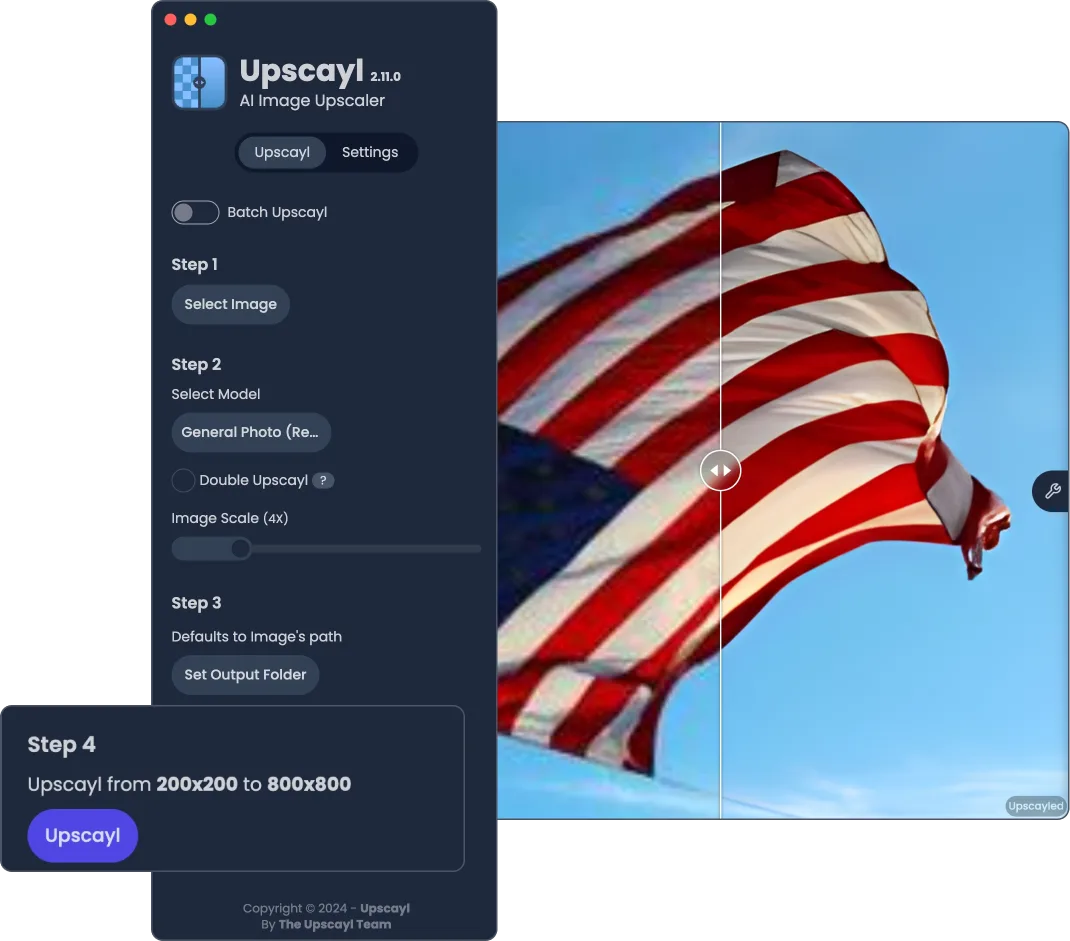
How do I check that my GPU works with Upscayl?
- Try one small image. In Step 1 click Select Image, choose a small PNG or JPG, keep the default model and click Upscayl.
- Open the Settings tab. Whether it worked or not, click Settings at the top of the sidebar and scroll to the log area.
- Read the GPU list. The log lists every Vulkan device with a number in square brackets, for example [1 NVIDIA ...].
- Set the GPU ID. If the wrong device was used, type its number into the GPU ID field. The field is empty by default, which lets Upscayl choose.
- Set Upscayl to High performance in Windows. On a laptop with two GPUs, open Windows Settings, System, Display, Graphics, choose Upscayl and set it to High performance, then retry the same image.
Why does Upscayl need a Vulkan GPU?
Upscayl runs its AI models through upscayl-ncnn, an engine built on Vulkan, the cross-vendor graphics API. The README FAQ is plain about it: a Vulkan-compatible GPU is required and most integrated GPUs and CPUs will not work. The compatibility list adds that Vulkan 1.3 GPUs should be fine and names integrated chips that users reported working. The only reliable test is your own computer, which is why the first step is one small image rather than a folder.
Where does Upscayl show which GPU it used?
Upscayl writes the device list to the log in the Settings tab after you try an image. The project’s GPU ID guide shows the format: each Vulkan device appears with a number, and the number is what the GPU ID field expects. The field is empty by default (user settings), which lets the engine choose. The Copy Logs button copies the whole log for a bug report; remove personal folder names before posting it publicly.
Why does Windows ignore my GPU ID?
Windows can override the app’s GPU choice on laptops with both integrated and dedicated graphics. Upscayl’s own Settings hint says “Enable performance mode on Windows for better results”, and the README FAQ notes that Windows may override the GPU ID unless Upscayl is set to performance mode. Set the app to High performance in Windows graphics settings, restart Upscayl and read the log again. The troubleshooting page also suggests disabling switchable graphics on AMD notebooks where the firmware allows it.
What should I try after a Vulkan error?
Work from the exact error code, one change at a time. Codes such as -2 and -9 are standard Vulkan result codes, and the table above lists the fix the Upscayl wiki gives for each. After every change, run the same small image again so you know which change mattered. Once one image succeeds, continue with the first-image guide; if nothing works, the app’s GitHub issue tracker asks for the copied log and your GPU model.
| Symptom in the log or app | Likely cause | What to do |
|---|---|---|
GPU Error toast, then vk… failed in the log | No working Vulkan driver, or an unsupported GPU | Install the current driver from the GPU maker, then check the compatibility list |
VK_ERROR_OUT_OF_DEVICE_MEMORY (-2) | The GPU ran out of video memory | Try a smaller image first; the wiki also suggests changing the GPU memory allocation in the BIOS |
VK_ERROR_INCOMPATIBLE_DRIVER (-9) | Driver too old or not Vulkan-capable | Reinstall the graphics driver; the wiki says to check it three times |
| Works, but very slowly, on a laptop | Windows picked the integrated GPU | Set Upscayl to High performance and enter the dedicated GPU's ID |
| Output looks washed out | Input uses a colour profile other than sRGB | Convert the image to sRGB first; Upscayl supports only sRGB |
Sources: Upscayl's Troubleshooting and Guide wiki pages, the Vulkan VkResult reference and the app's own error text (renderer/locales/en.json).
Frequently asked questions
Does Upscayl run on a CPU without a compatible GPU?
Not normally. The README says Upscayl will not work with most integrated GPUs or CPUs, because its processing engine needs Vulkan. A community workaround exists for some Windows and Linux systems, but expect it to be slow and test it on one small image first.
Which GPUs work with Upscayl?
The project's compatibility list says GPUs that support Vulkan 1.3 should be fine and that dedicated GPUs are assumed to work, except reported failures such as the GTX 7xx series. Some integrated GPUs, including Intel HD 620 and 630, Iris and most AMD Vega, are listed as working.
Can Upscayl use two GPUs at once?
You can enter several IDs, such as 0,1, in the GPU ID field. The project's guide warns that the load is not split evenly between cards, so a single fast dedicated GPU is usually the better choice.